The MR-B3RB is versatile and can support several network wiring configurations. There are also several optional communication bus connections. This section will serve to show the BASELINE connections. We will also attach cables that may not be used, but should stay with the B3RB for future expansion or debugging.
Baseline B3RB wiring intent
Provide power to the NavQPlus and MR-CANHUBK344
Connect the NavQPlus and CANHUBK344 with T1 Two-wire Ethernet
Attach the LIDAR to the NavQPlus
Attach the SERVO and Motor Control PWM to the MR-CANHUBK344
Quadrature encoding from the motor/PDB to the MR-CANHUBK344
Connect the RGB LED lighting
Have debuggers and consoles attached
Optionally plug in unused RC-PWM input
Optionally connect CAN-FD cables, which could be used for peripherals and attachments
Optionally connect a serial console from the MR-CANHUBK344 to the NavQPlus
<<TODO - add link to section that removes the jumper on the PDB. Add PDB wiring section>>>
The final setup with al the established connections should look like this:
A closer view on MR-CANHUBK344 after wiring is completed:
And in the NavQPlus:
Please follow the steps 4a and 4b for the detailed explanation on these connections.
The LIDAR is temporarily placed for visualizing the connection, not its final location.
A closer view on the connection on MR-CANHUBK344
Wiring M10 GPS module
Introduction
The GPS module is primarily used to provide the Magnetometer, sound and SAFETY button for the system. Not all systems will use the GPS localization functionality. The software however is capable of using the use of GPS position data for navigation outdoors.
An ARMING board is also included in the kit and can be used with alternative software.
This can provide the safety button and sound functionality, but not the Magnetometer needed for robotics navigation using Cognipilot.
M10 GPS connection
You need to add first the M10 GPS mount to the metal frame. This is explained in the section
The M10 GPS cable attaches to the MR-CANHUBK344 as shown below
It is a four-wire cable having two red and two black cables representing VCC and ground respectively. Firstly, connect one end of the cable to any of the pout terminal on the PDB.
Then connect the other end on the following connector of the NAVQPlus.
The cable shown below is NOT USED with the B3RB and PDB.
It may be attached already when you first open the NavQPlus.
Keep it safe as it may be useful for other configurations or when bench testing NavQPlus with an 3S LiPo battery or bench power supply.
BaseT1 Ethernet wiring between NavQPlus and MR-CANHUBK344
This is also explained here:
Lidar connection
<TODO> refer to the mounting of the LIDAR base
The cable necessary for connect the NavQPus to the LIDAR-STL-27 is the number one in .
A closer view of this cable:
The Lidar used is the following:
You should connect the smaller end of the cable to the Lidar and the bigger end to the UART3 Serial port of the NavQPlus:
Thse are all the connections available for NavQPlus:
<TODO >
note on CAN
note on console
note on Ethernet
Additional information about the boards and wiring
(DRAFT)
Block Diagram of the NavQPlus
<todo> insert a block diagram and or photo of wiring. Image below may be helpful
<todo > add schematic block diagram of how everything is connected
This connection between the Steering servo and the PDB is pre-wired on the lower chassis but is shown here for reference.
Note that the PWM control signals are only passed through the PDB and XDHP connector and actually originate at the MR- CANHUBK344. +5V Power for the servo does get injected by the PDB though.
The image illustrates how a servo motor is connected to the PDB (Power Distribution Board). It shows three distinct wires: the red wire is +5V positive voltage supply, the brown wire is the ground connection, and the yellow wire carries the control RC-PWM signal from the microcontroller (MR-CANHUBK344).
As shown in the images, the correct orientation of the Servo wire is with the Yellow wire toward the short edge of the PDB. The Servo will NOT be damaged if this connection is reversed, it will simply fail to move.
Servo motor connection on PDB
Side showing PDB and Servo connection after removing side skirt
Wiring Power to MR-CANHUBK344
Power cable from PDB to MR-CANHUBK344
Extra-long power cable for MR-CANHUB to PDB connection.
These cables connect to any of the 4 pin Pout connectors on the PDB. All Pout connectors are the same, but some may be closer and provide a better location. Choose one that makes your wiring tidy without overstretching the cable.
And the other end connects to the power input (AKA VBat) of the MR-CANHUBK344
The MR-CANHUBK344 sends PWM signals to the Motor controller and also to the Servo. These are standard RC Model type PWM connections.
In order to facilitate keeping the signals in the correct order they are routed and consolidated onto a single cable and small "XDHP" connector board.
It is still quite important to get the XDHP connector positioned correctly on the PWM header of the MR-CANHUBK344
Technical note: The steering servo gets +5V power from the PDB
Thw PWM/XDHP wire connection should look like as depicted in the following picture:
PWM signals wiring to MR-CANHUBK344
The cable carrying PWM signals between the MR-CANHUBK344 board, and the Power Distribution Board should look like as shown in picture below. It is a seven wire interface which carries multiple PWM signals and has a VCC line and a ground.
There is a small "XDHP" adapter board to fit on the PWM pin-header of the MR-CANHUBK344 board. This is provided in the kit and show in the image above
Please be extra careful that the XDHP adapter board is connected and aligned correctly.
Damage to the board could result from incorrect connection.
XDHP connection on PDB side
The one end of the PWM cable is connected on the XHDP pins on the PDB:
The other end of the cables having the xHDP adapter on it is mounted on the first three columns(Three pairs of three pins) of PWM pins which represents PWM0, PWM1 and PWM2 positions of the MR-CANHUBK344 respectively:
XDHP (PWM) connection on MR-CANHUBK344 side
Installation of the XDHP adapter board and cable is most easily done when the cable and connector are conected together first. Then gently bend the wires at a 90 degree angle. Push the XDHP adapter onto the CANHUBK344 pin headers.
The images show XHDP adapter is mounted on the first three columns (Three pairs of three pins) of PWM pins.
This corresponds to PWM0, PWM1 and PWM2 positions of the MR-CANHUBK344 respectively.
The XDHP aligned toward the PWM header CLOSEST to the side of the board with the CAN connectors.
Wiring T1 Ethernet cable
Introduction
The NavQPlus and MR-CANHUBK344 communicate to each other using 100Base-T1 Two wire ethernet .
Wiring QDEC cable
Introduction
The Quadrature decoder (QDEC) cable connects from PDB to MR-CANHUBK344.
Quadrature signals are coming from the encoder on the motor itself.
The PDB is then used to interface between the two different cable types.
QDEC signal provides measured information on how many revolutions the motor has made, and therefore how far the robot has travelled. This can then be used in the control system as an input.
See here for .
PDB Wiring of RGB LED
Introduction
The RGB LEDS communicate using a SPI-like communication which is modified in that it is unidirectional. The data and power for the LEDs is supplied by a STEMMAQT type connector the PDB, and the SCL SDA (SPI) lines have a second wire connector which attaches between the PDB and SPI port on MR-CANHUBK344
Wiring Power cables
Introduction
There are two 5 pin JST-GH cables that provide battery power to the MR-CANHUBK344 and the NavQPlus. They are 5 pins, with no wire in the center position. Two wires are battery voltage+ and two wires are battery voltage-. Be sure to limit the voltage applied at the battery to <20V or the specified ratings for any boards plugged in.
The nominal battery voltage is expected to be ~12V,
Long and short power cable
There is one long and one short power cable included in the kit.
Connect is the LONG power cable from the MR-CANHUBK344 to one of the the Power Distribution Board Pout connectors.
The shorter length power cable can be similarly connected to the NavQPlus
When done, ZIP TIE the cables to the edge of the top plate and make them neat.
Connection PDB XHDP connector to MR-CANHUBK344
XDHP Cable and small adapter board
XDHP Adapter board
Connection from CANHUB to PDB using black PWM cable
BaseT1 Ethernet wiring between NavQPlus and MR-CANHUBK344
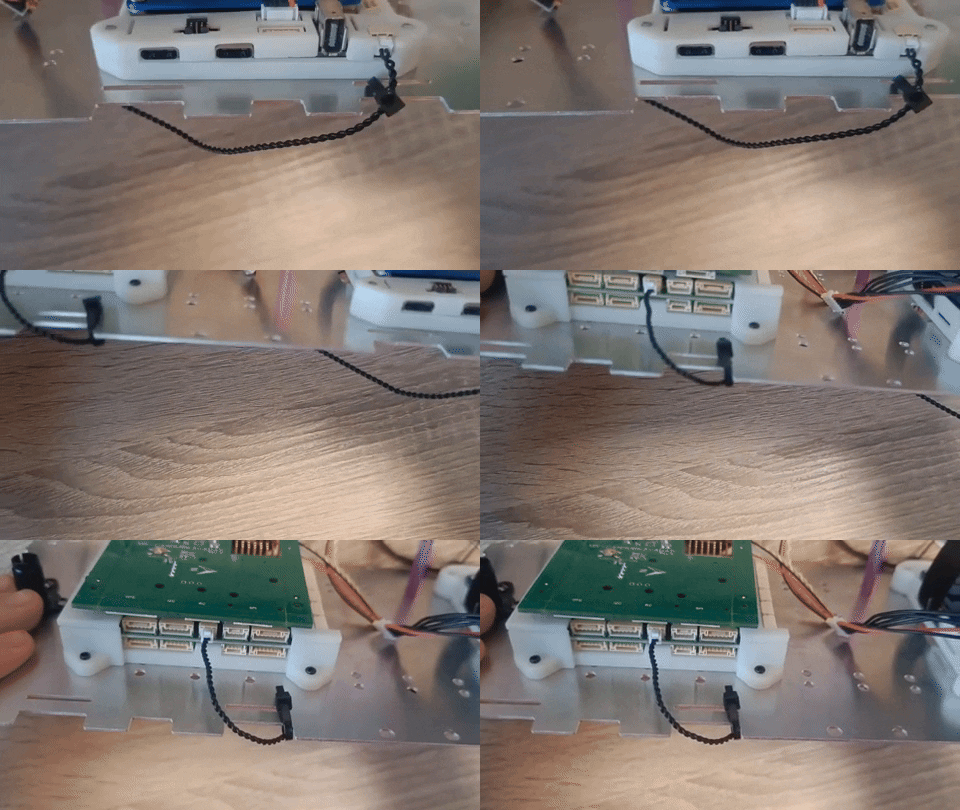
Connect the ethernet cable between the NavQPlus and the MR-CANHUBK344.
Zip Tie the cable at both ends and tuck it under the top plate.
Note the specific side notches to use.
Use a piece of tape to hold it neatly out of the way under the plate
Left side CANHUB and right side is NAVQPLUS
Note Pre-production MR-B3RB used a special QDEC cable with orange band markings.
if you happen to have one or are upgrading a pre-production kit, do not use this cable as the signals are reversed.
QDEC (Quadrature Decoder) Cable
This cable is crucial for calculating the odometry, speed and direction of the robot car. There are six black wires and one red wire in it. The cable should look like this:
One end of the cable must be attached to the QDEC out pin on the PDB:
And the other end must be attached to the following pin on the MR-CANHUBK344:
The following image shows the LED lights setup with the left side representing the rear and the right side indicating the front of the car. This is pre-assembled.
If for some reason you need to re-create these connections, you should know that it is a daisy chain of STEMMA-QT type connectors, and that there is a marked IN and OUT connector on each of the LED light bars. The connections are from PDB -> IN(rear) -> out(rear) -> in (front)
Note that STEMMA-QT connectors are used but ABUSED and carry SPI signals not the normal STEMMA QT (I2C) signals.
Pre-Assembled lower chassis showing the left side (rear of the car) and the right side (front of the car).
Use the seven-pin JST-GH wire depicted in the picture below to connect from PDB to MR-CANHUBK344
Connect one end of the wire to SPI pin of the PDB.
LED wire pin connection on PDB
Connect other end to the SPI2 of the plastic case of the MR-CANHUBK344: