> For the complete documentation index, see [llms.txt](https://nxp.gitbook.io/mr-b3rb/llms.txt). Markdown versions of documentation pages are available by appending `.md` to page URLs; this page is available as [Markdown](https://nxp.gitbook.io/mr-b3rb/additional-b3rb-modules/vive-tracker-integration.md).
# VIVE tracker integration
This tutorial describes how to use the SteamVR tracker with the B3RB
> 1. [Introduction](#pdf-page-to9aw0m0lozdfyoc0g3c-introduction)
> 2. [Use cases](#pdf-page-to9aw0m0lozdfyoc0g3c-use-cases)
> 3. [Connect the VIVE Tracker to a PC](#pdf-page-to9aw0m0lozdfyoc0g3c-using-pc)
> 4. [Using in ROS2 with the libsurvive library](#pdf-page-to9aw0m0lozdfyoc0g3c-using-ros2)
> 5. [Annex: connect the VIVE tracker to a PC ](#pdf-page-to9aw0m0lozdfyoc0g3c-using-pc-1)
> 6. [References](#pdf-page-to9aw0m0lozdfyoc0g3c-references)
## Introduction
The Vive tracker can be used to provide a reasonably accurate ground truth reference for robotics. By enabling it using the libsurvive library, position and pose information can be viewed and stored in ROSBAGS for further analysis.
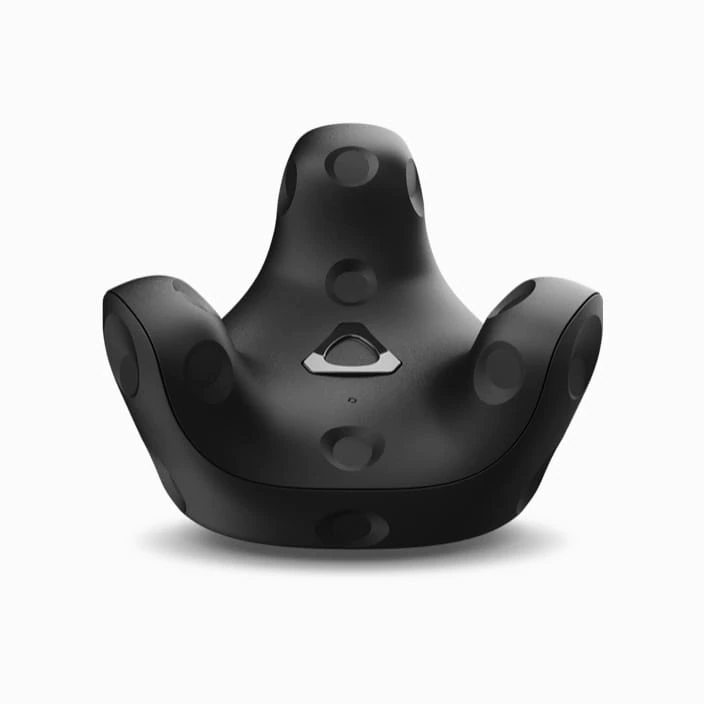
VIVE Tracker (3.0) can pair with HTC’s wireless dongle or use its USB interface to transfer tracking data to a PC. An accessory attached to VIVE Tracker (3.0) can:
* Simulate buttons of the VIVE Controller through the underlying Pogo pin port.
* Send specific data to a PC through the USB interface of VIVE Tracker (3.0).
| | Tracker (3.0) |
| -------------------- | -------------------------------------------------- |
| **Tracking** | Support for SteamVR BS1.0 and BS2.0 |
| **Status indicator** | LED |
| **Input** | Power button, Pogo pin, USB-C |
| **Charging** | USB-C |
| **Attachment** | 1/4-inch UNC Threaded mount (standard tripod mount |
## How it works
Side view of HTC Vive working principle with α being the angle between a sweeping plane and the normal vector to the lighthouse.[3]
## Status lights
The status light shows:
* Green when the controller is in normal mode
* Blinking red when battery is low
* Blinking blue when the controller is pairing with the headset
* Blue when the controller is connecting with the headset
* Orange when charging
## Use cases
As mentioned in the Developer guide \[2], the VIVE Tracker provides five use cases:
* Use case 1: Track passive objects through USB interface in VR. In this case, the dongle is not used. VIVE Tracker (3.0) is connected to the PC through USB to directly transfer tracking data.
* Use case 2: Track passive objects through USB interface in VR, with the accessory passing data to a PC through USB, BT/Wi-Fi or propriety RF. This is similar to Use Case 1 but the accessory directly transfers the tracking data to a PC for a specific purpose based on its design.
* Use case 3: Track moving objects by wireless interface in VR. In this case, the dongle is used to transfer tracking data from the VIVE Tracker (3.0) to a PC.
* Use case 4: Track moving objects using a wireless interface in VR, with the accessory passing data to a PC through USB, BT/Wi-Fi or propriety RF. This is similar to Use Case 3 but the accessory directly transfer the tracking data to/from a PC for a specific purpose based on its design.
* Use case 5: Track moving objects using a wireless interface in VR, with the accessory simulating buttons of the VIVE Controller or passing data to a PC through the VIVE Tracker (3.0). This is similar to Use Case 3 but the accessory connects with the VIVE Tracker (3.0) to transfer a button event to a PC through the Pogo pins or USB interface.
## Using with ROS2 and libsurvive library
To VIVE tracker in NavQPlus using ROS2, you need to follow the instructions in the following github repository:
libsurvive\_ros2 provides a lightweight ROS2 wrapper around the libsurvive project, an open source set of tools and libraries that enable 6 dof tracking on lighthouse and vive based systems.
First of all set the udev rules:
```
sudo curl -fsSL https://raw.githubusercontent.com/cntools/libsurvive/master/useful_files/81-vive.rules \
-o /etc/udev/rules.d/81-vive.rules
sudo udevadm control --reload-rules && sudo udevadm trigger
```
And install the required packages:
```
sudo apt-get install build-essential \
cmake \
freeglut3-dev \
libatlas-base-dev \
liblapacke-dev \
libopenblas-dev \
libpcap-dev \
libusb-1.0-0-dev \
libx11-dev \
zlib1g-dev
```
Then create a workspace and install the ROS2 wrapper:
```
mkdir -p ~/ros2_ws/src
cd ~/ros2_ws/src
git clone https://github.com/asymingt/libsurvive_ros2.git
cd ..
colcon build
source install/setup.bash
```
Connect the VIVE Tracker to the NavQPlus using an USB-C to USB-C cable.
Launch the ROS2 node:
```
ros2 launch libsurvive_ros2 libsurvive_ros2.launch.py rosbridge:=true
```
Three topics are published:
* /libsurvive/cfg: listens for device configuration
* /libsurvive/imu: listens for devie inertial measurements
* /libsurvive/joy: listens to the button
We need to look at the topic */libsurvive/imu* of type *sensor\_msgs/msg/Imu.*
To display topic data in foxglove, we need first to add the topics */libsurvive/imu* and */tf\_static* to the whitelist.
{% file src="/files/KyMkap8xQ8b077Q2ldEv" %}
## Annex: Connect the VIVE Tracker to a PC
This is simply the default method for connecting the unit. It can be used to ensure the device is working correctly. However for collecting data in ROS2, you will want to use the libsurvive library.
1- Download steam :
2- Download steamVR
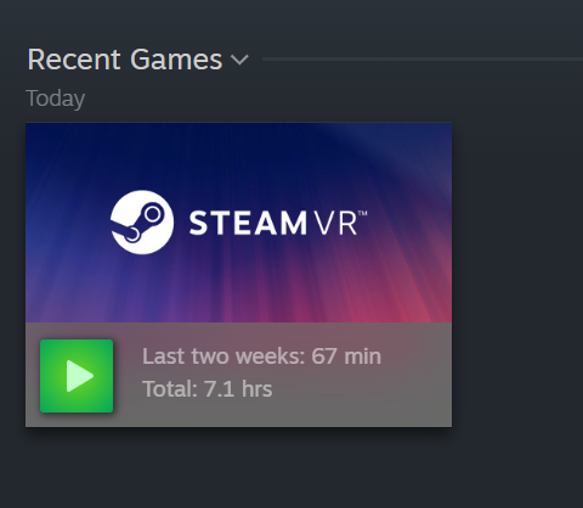
Connect the tracker to the PC via the USB-C cable then open Steam app. Got to "*Library"* then launch SteamVR app (click on the green button)
When launched, a small window will appear:
## References:
\[1] [Official website](https://developer.vive.com/eu/hardware/tracker3/?_gl=1*4k7c8u*_ga*MjEwMzkxMTM1LjE3MTAzMjQ4Njg.*_ga_68NRVQF2CG*MTcxMjU2ODk4NS40LjEuMTcxMjU2OTE1NC4wLjAuMTU1MTM0MjYzNQ..*_fplc*Q1hoRm13ZlJoQlFlS1NRZFB4YWlGOEdRUG5yeEhtYTllYVZOcktyNmhUUzZaTmZobE04aXNUUEFTNWRucWVreERIb2VvV3g3V0Z1cDF3NVlwb0lmU2QlMkI2TTdCc3VBU3Z4QklKakpMOXRlVE9VY1lpbVhBakd3VWdhc25pSHclM0QlM0Q.*_ga_JK4N8EYCGF*MTcxMjU2ODk4NS40LjEuMTcxMjU2OTE1NC4wLjAuMA..)
\[2] [Developer guide](https://dl.vive.com/Tracker/Guideline/HTC%20Vive%20Tracker%20\(3.0\)%20Developer%20Guidelines_v1.0_01182021.pdf?_gl=1*at9evb*_ga*MjEwMzkxMTM1LjE3MTAzMjQ4Njg.*_ga_68NRVQF2CG*MTcxMjU2ODk4NS40LjEuMTcxMjU2OTUxMC4wLjAuMTU1MTM0MjYzNQ..*_fplc*QXZLbGtZYmNkMFViRjZKdVc5ayUyRlkzRU5oZTFvJTJCekV1NUpINEZqVmh6ZiUyQnpLZDlubm5aSlR1ak1KS2hTMTJVREFKcyUyQlVMR28zWlRRMnRqQXlzcGlsS1lWU0RXYnA3TTJ5VmZJdDJiJTJCUExieUVkdmNISWpJSzB0Sk0lMkZpJTJGRHclM0QlM0Q.*_ga_JK4N8EYCGF*MTcxMjU2ODk4NS40LjEuMTcxMjU2OTUxMC4wLjAuMA..)
\[3] Borges, Miguel, Andrew Symington, Brian Coltin, Trey Smith, and Rodrigo Ventura. “HTC Vive: Analysis and Accuracy Improvement.” In *2018 IEEE/RSJ International Conference on Intelligent Robots and Systems (IROS)*, 2610–15. Madrid: IEEE, 2018. .




.png?alt=media&token=852e719a-e2c6-40d9-9931-07bdbca490f2)
.png?alt=media&token=70c2e7af-3296-4677-9873-ee9f110f44e4)