> For the complete documentation index, see [llms.txt](https://nxp.gitbook.io/mr-b3rb/llms.txt). Markdown versions of documentation pages are available by appending `.md` to page URLs; this page is available as [Markdown](https://nxp.gitbook.io/mr-b3rb/software/mr-b3rb-software-developer-guide/cognipilot-prepare-mr-canhubk344-for-programming/connect-j-link-edu-mini-to-mr-canhubk344-with-cognipilot-debugger.md).
# Connect J-Link EDU Mini to MR-CANHUBK344 with Cognipilot debugger
This guide provides instructions for connecting the J-Link EDU Mini to the MR-CANHUBK344 with the objective of flashing the Cognipilot software onto the board
{% hint style="success" %}
This is an alternative connection using a Cognipilot debugger adapter.
{% endhint %}
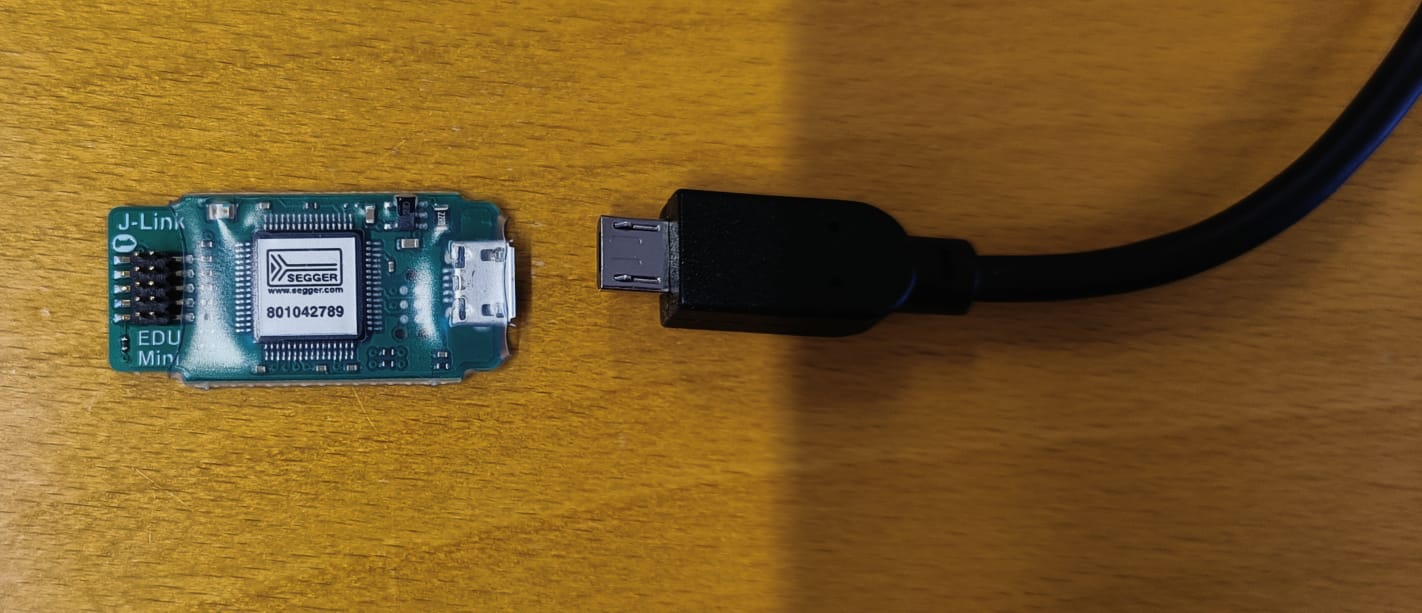
First take the J-Link EDU Mini, you can find more information here: [WITB MR-B3RB-BMF](/mr-b3rb/archive/whats-in-the-box-pre-production-version/witb-mr-b3rb-bmf.md#j-link-edu-mini-debugger)
Then, get the J-Link EDU Mini. Then, use the cable with a micro-USB connector on one end and a USB Type-A connector on the other end.
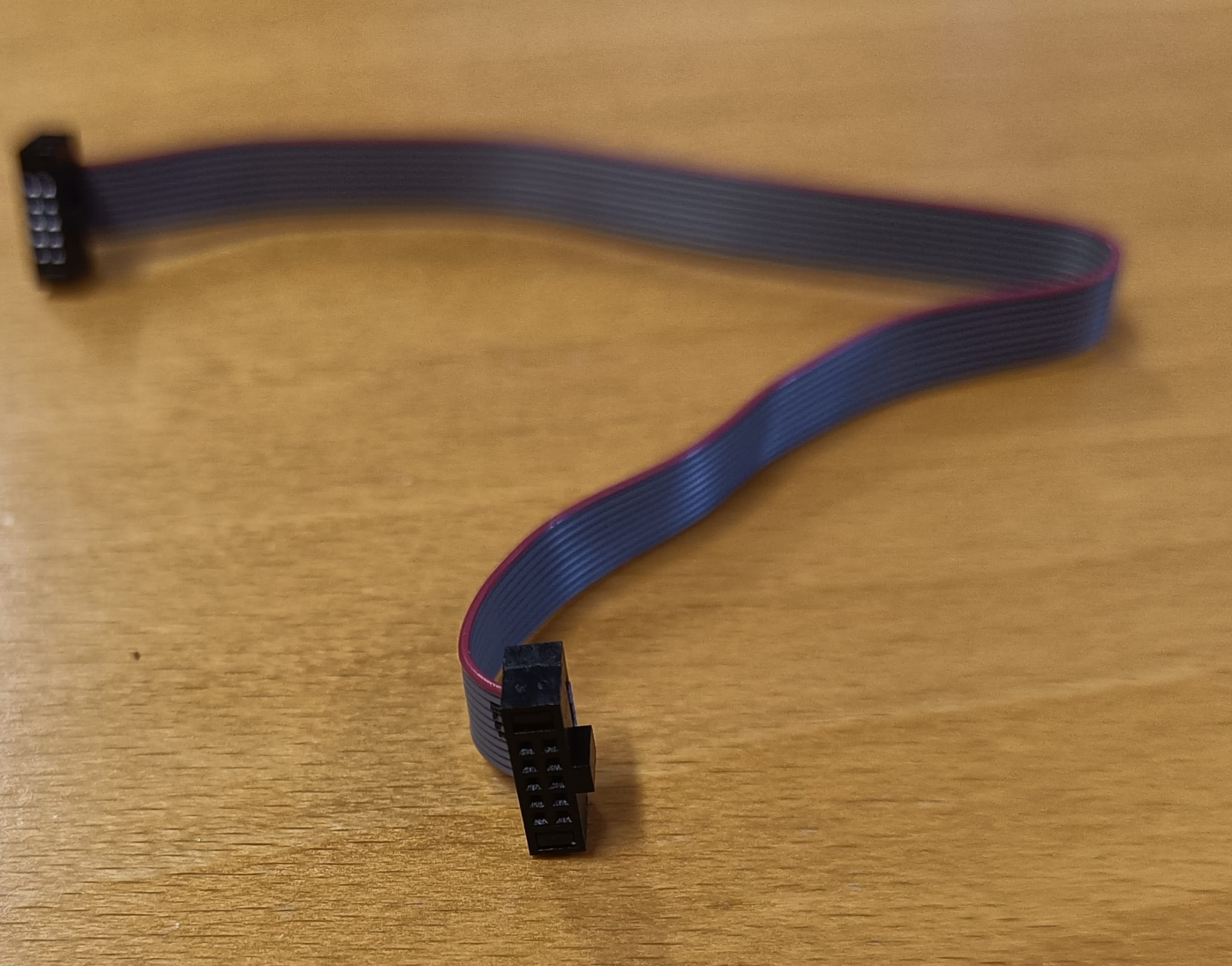
Then take the [10-Pin 2x5 Socket-Socket IDC (SWD) Ribbon Cable](https://www.adafruit.com/product/1675) and connect it to the J-Link EDU mini:
Please, connect the 10-Pin 2x5 Socket-Socket IDC (SWD) Ribbon cable in the following position to the J-Link EDU Mini:
Next, please pick up the Cognipilot debug adapter:
7 position JST-GH connector
A close view on how to connect the 7 position JST-GH connector to the debugger
Next, connect one end of the 10-pin 2x5 Socket-Socket IDC (SWD) ribbon cable to the connector on the Cognipilot debugger. Ensure that the orientation of the connector corresponds to the one shown in the following image:
Finally, connect the other end of the 7 position JST-GH connector to the MR-CANHUBK344. Please, connect it into the pin showed in the following image:
Now, you just need to connectConnect the USB cable to your development computer and also remember to connect power to the Buggy (the LiPo battery to the PDB) in order to flash the MR-CANHUBK344, as the board needs to be connected to the power. Then, you can return here to follow the instructions: .\
\
\
[CogniPilot: Prepare MR-CANHUBK344 for programming](/mr-b3rb/software/mr-b3rb-software-developer-guide/cognipilot-prepare-mr-canhubk344-for-programming.md#prepare-mr-canhubk344-real-time-vehicle-controller)
\
Connect the MR-Link-MR to the 7 position JST-GH programing connector to the MR-CANHUBK344. Please, connect it as shown in the following image:
Now, you just need to connect the USB cable to your development computer and also remember to connect the LiPo battery to the PDB to flash the MR-CANHUBK344, as the board needs to be connected to the power. Then, you can return here to follow the instructions: [CogniPilot: Prepare MR-CANHUBK344 for programming](/mr-b3rb/software/mr-b3rb-software-developer-guide/cognipilot-prepare-mr-canhubk344-for-programming.md#prepare-mr-canhubk344-real-time-vehicle-controller)